PRODUCT UPLOAD GUIDE

Add Your First Product

Create complete rental and sale listings for costumes, garments, jewelry, accessories and production inventory.

This guide shows exactly what sellers need to prepare, upload, price and submit products for CostumePeti + Vault channels.

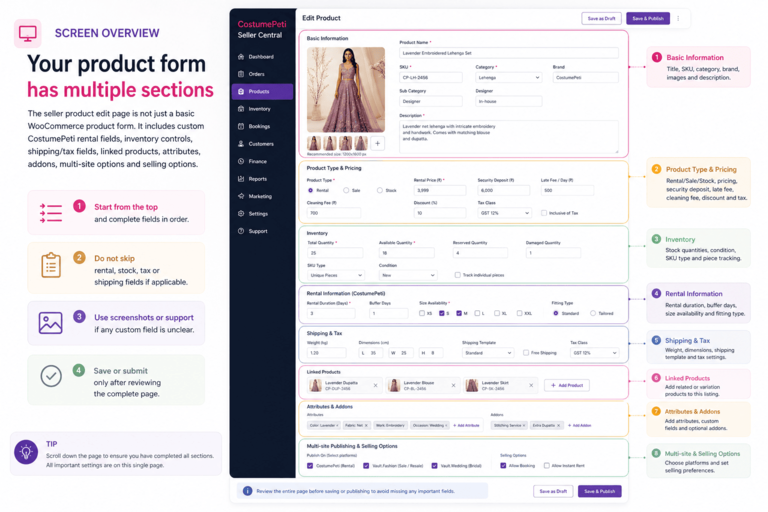
Seller dashboard product upload screen placeholder

Fast Path: What You Need Before Uploading

Prepare these first to avoid product rejection or approval delays.

1. Photos

Front, back, close-up, full product and accessory images.

Best: clean background + clear lighting.

2. Product Details

Title, description, category, size, color, fabric, brand and condition.

Goal: make it searchable.

3. Pricing

Rental price, sale price, deposit, cleaning fee and stock.

Tip: protect premium items.

4. Availability

Stock quantity, rental dates, unavailable dates and product status.

Important: avoid double booking.

Product dashboard screenshot placeholder
SCREEN 1

Open Products from your Seller Dashboard

Log in to Seller Central, open the seller dashboard, then go to the Products section. This is where you add, edit and manage your inventory.

  • Use Add New Product for new inventory.
  • Use existing product rows to edit titles, prices, stock and images.
  • Check product status after submission.

Open Product Dashboard →

STEP-BY-STEP PROCESS

How to Add a Product

Follow these steps in order for a complete listing.

STEP 01

Start a New Product

From the seller dashboard, go to Products → Add New Product.

  • Use this for every new costume, garment, jewelry piece, accessory or prop.
  • Avoid duplicate products unless you have separate units or variants.
  • Save progress carefully if the form supports drafts.
Add new product button screenshot placeholder
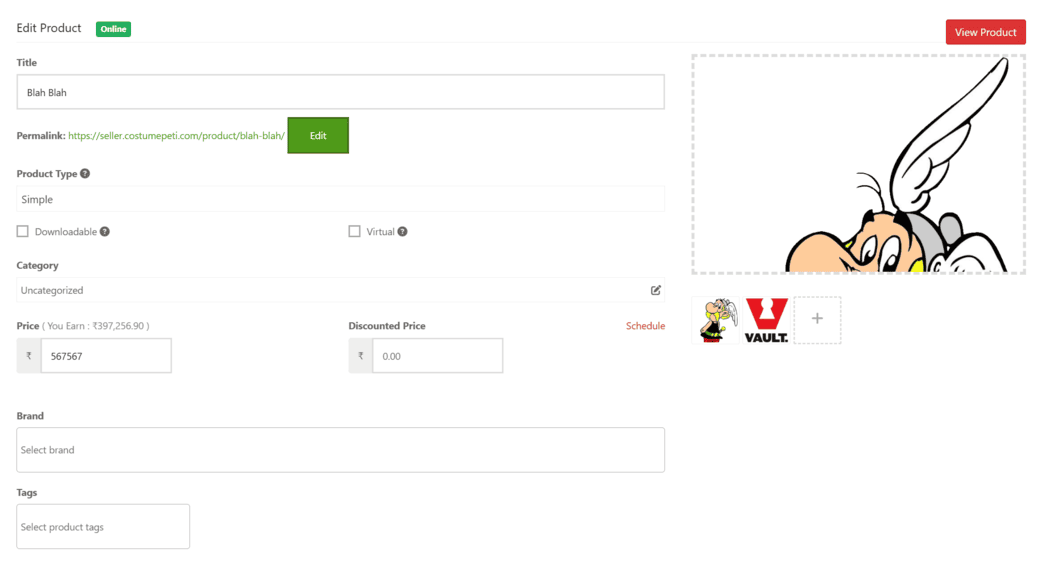
Product title field screenshot placeholder
STEP 02

Add a Clear Product Title

Use a title that customers can search and understand quickly.

Good examples:

  • Red Bridal Lehenga with Dupatta
  • Men’s Royal Blue Velvet Sherwani
  • Police Costume for Film Shoot
  • Gold Kundan Necklace Set

Avoid: Dress 1, Costume Set, New Item, Product 123.

STEP 03

Upload Product Images

Images are the biggest factor in seller approval and customer confidence.

  • Front image
  • Back image
  • Close-up detail image
  • Model or mannequin image
  • Accessory image if included
  • Condition/damage image if relevant
Product image upload screen placeholder
IMAGE QUALITY RULES

Upload photos that help customers decide fast.

Use these rules before submitting product images.

Clear Lighting

Avoid dark or blurry images.

Full Product

Show the complete item clearly.

Close-Ups

Show embroidery, fabric and details.

No Misleading Edits

Avoid heavy filters or fake colors.

Category and tags screen placeholder
STEP 04

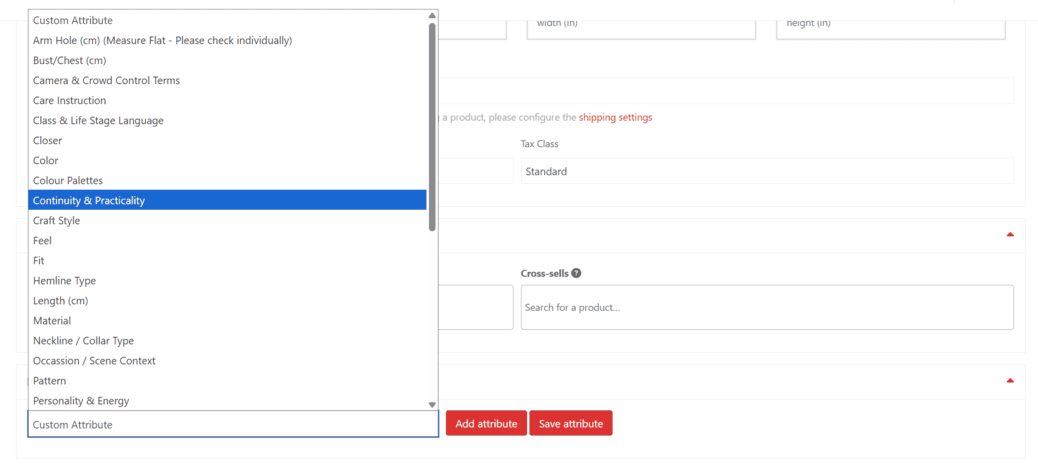
Select Category, Tags & Attributes

Correct classification helps the product appear in search, filters and the right platform.

  • Category: product type and audience
  • Tags: occasion, style, color, theme, use case
  • Attributes: size, color, fabric, brand, condition

Examples: bridal, film costume, sherwani, jewelry, photoshoot, wedding, vintage.

STEP 05

Write a Strong Description

Your description should answer customer questions before they ask support.

  • Product overview
  • Best use cases
  • Material / fabric
  • Fit / size / measurements
  • Condition
  • Included accessories
  • Rental or sale notes
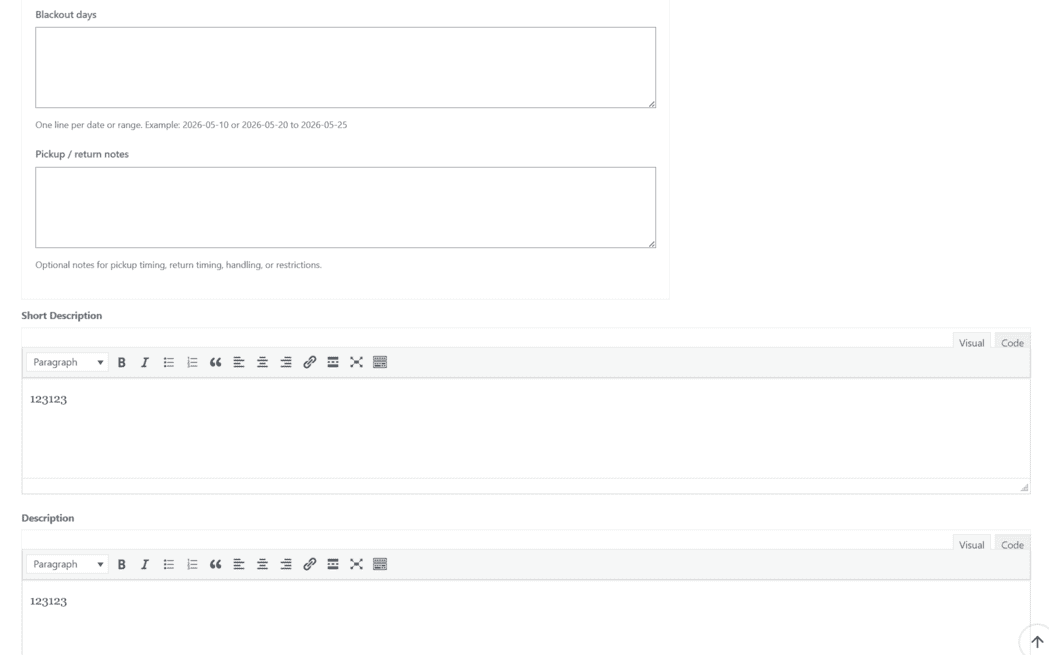
Product description editor screenshot placeholder
COPY STRUCTURE

Recommended Product Description Template

Use this structure for better listing quality.

Product Overview: What is the item and what makes it useful?

Best For: Wedding, film shoot, theatre, photoshoot, party, event, styling or resale.

Details: Fabric, color, work, design, fit, size and measurements.

Condition: New, gently used, vintage, minor wear, repaired or premium condition.

Included: Dupatta, blouse, accessories, belt, jewelry, props or packaging.

Rental/Sale Notes: Deposit, cleaning, handling or special care instructions.

Pricing screen placeholder
STEP 06

Add Rental / Sale Pricing

Choose how you want to monetize the product.

  • Sale Price: for direct purchase
  • Rental Price: for temporary use
  • Security Deposit: protects against damage or loss
  • Cleaning Fee: covers maintenance after rental

Read Rental Setup Guide →

STEP 07

Add Stock & Availability

Accurate stock avoids overselling and double booking.

  • Add available quantity
  • Mark product unavailable if under repair
  • Block rental dates when already booked
  • Add buffer time for cleaning or logistics

Read Inventory Guide →

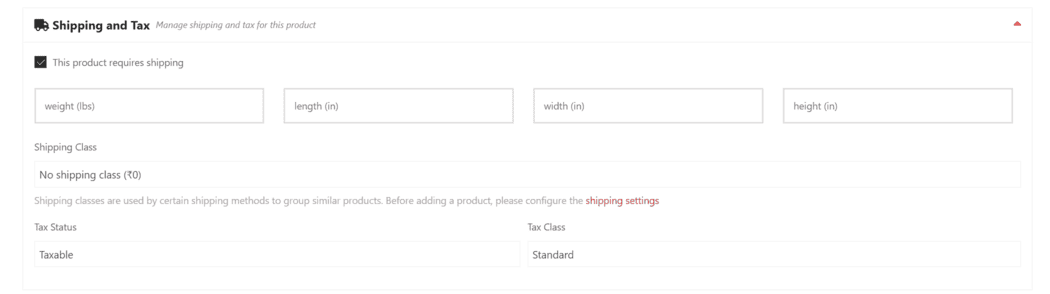
Stock and availability screen placeholder
Submit product review screen placeholder
STEP 08

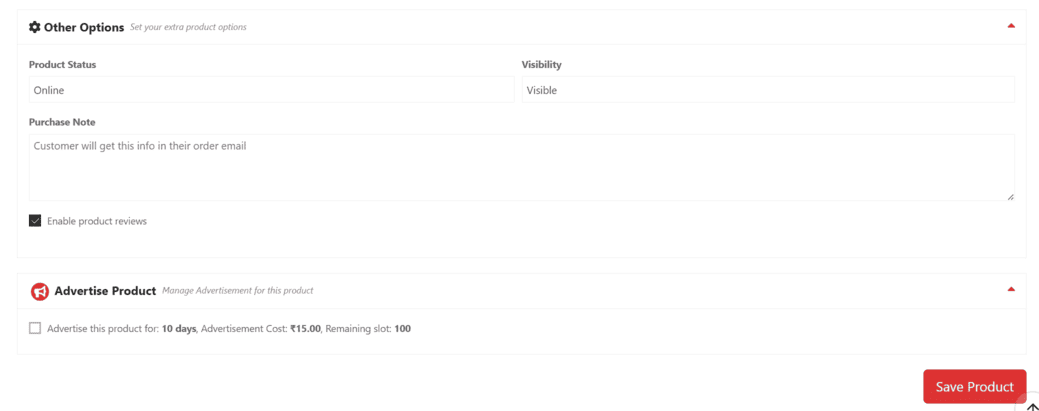
Submit for Review

After completing all required fields, submit the product. The listing may be reviewed before appearing live.

  • Check title, images, price and stock before submit
  • Confirm rental/sale settings
  • Do not submit incomplete listings
  • Wait for approval or support feedback
WHERE YOUR PRODUCT CAN GO

One listing can support multiple channels.

Approved products may be published across eligible CostumePeti + Vault platforms.

CostumePeti

Rental-ready costumes, garments, accessories and production inventory.

Vault.Fashion

Sale and resale channel for fashion products.

Vault.Wedding

Wedding rentals, bridal inventory, groom wear and occasion products.

APPROVAL CHECKLIST

Best Practices for Faster Approval

  • Use clear and searchable product titles.
  • Upload high-quality front, back and close-up images.
  • Select the correct category, tags and attributes.
  • Add size, color, fabric, brand and condition.
  • Do not upload duplicate or incomplete products.
  • Do not use misleading images, fake colors or heavy filters.
  • Mention damages, wear, missing parts or repairs clearly.
  • Add rental deposit for high-value items.
  • Confirm stock and availability before submitting.
AVOID THESE MISTAKES

Common Reasons Products Get Delayed

Poor Images

Blurry, dark or cropped product images slow approval.

Wrong Category

Incorrect categories make products hard to find.

Missing Price

Products need rental price, sale price or both.

No Condition Notes

Damage, wear or missing accessories must be mentioned.

PRODUCT UPLOAD FAQS

Common Questions

Your product may be pending approval, missing required information, out of stock, unpublished or not assigned to the correct platform.

Yes. You can edit products from your seller dashboard. Some major changes may require review before appearing live.

Yes, selected products can be configured for both rent and sale depending on category, stock and approval rules.

Check that the images were uploaded and saved correctly. If images are missing only on connected platforms, contact support with product name, SKU, source product URL and screenshots.

Send your store name, product title, SKU, product URL, screenshots and a short explanation of the issue.

READY TO LIST?

Start with one strong product listing.

A complete listing improves approval speed, customer confidence and order conversion.