INVENTORY OPERATIONS GUIDE

Inventory & Sync Guide

Manage stock, rental availability, images and multi-platform publishing across CostumePeti + Vault.

This guide explains how inventory flows from Seller Central to CostumePeti, Vault.Fashion, Vault.Wedding and future Vault channels.
Inventory dashboard placeholder
CORE IDEA

One inventory. Multiple revenue channels.

Seller Central is designed to help sellers upload and manage inventory once, while approved products can appear across eligible rental and sale platforms. Accurate stock and availability prevent overselling, double booking and payout delays.

CostumePeti

Rental-focused marketplace for costumes, garments, accessories, stylists and production use.

Best for: rentals and production inventory.

Vault.Fashion

Sales and resale channel for fashion inventory, designer pieces and wardrobe items.

Best for: direct product sales.

Vault.Wedding

Wedding rentals and sales for bridal wear, groom wear, jewelry and occasion inventory.

Best for: wedding rentals and sales.

INVENTORY FLOW

How inventory moves from upload to live channels

Use this flow to understand what happens after you add or edit products.

1

Upload

Add product in Seller Central.

2

Review

Product may be checked before publishing.

3

Publish

Eligible products go live on selected platforms.

4

Sync

Stock, pricing, images and availability align where supported.

5

Update

Changes should be managed from the correct source dashboard.

Product inventory list placeholder
SCREEN 1

Manage inventory from the Products dashboard

The Products dashboard is the main place to review product status, stock quantity, pricing, images and edits.

  • Check product status after upload.
  • Update stock when items are sold, rented, damaged or unavailable.
  • Review product images after publishing.
  • Contact support if synced platforms show different information.

Open Product Dashboard →

STOCK & AVAILABILITY

Stock is not the same as rental availability.

A product can exist in stock but still be unavailable for certain dates.

Stock Quantity

Stock quantity tells the platform how many units exist or are available.

  • Set correct quantity for each product.
  • Reduce stock when items are sold, lost or damaged.
  • Do not keep unavailable products active.
  • Update stock after repair, return or warehouse movement.

Rental Availability

Rental availability controls which dates an item can be booked.

  • Block dates for confirmed rentals.
  • Add buffer days for cleaning and logistics.
  • Mark products unavailable during repair.
  • Do not accept bookings for items not ready to dispatch.
Stock and availability settings placeholder
SELLER ACTION

Keep quantity and dates accurate

Most inventory issues happen because quantity, availability or product status is outdated.

  • Update stock after every confirmed sale.
  • Block dates after rental bookings.
  • Pause products that are damaged or in cleaning.
  • Do not duplicate products to solve stock issues.
WHAT MAY SYNC?

Common product data shared across platforms

Sync behavior depends on platform configuration, product type and supported fields.

Product Content

Title, description, categories, tags and attributes.

Images

Featured image and product gallery where supported.

Pricing

Rental or sale prices depending on channel support.

Stock

Inventory quantity and availability where integrated.

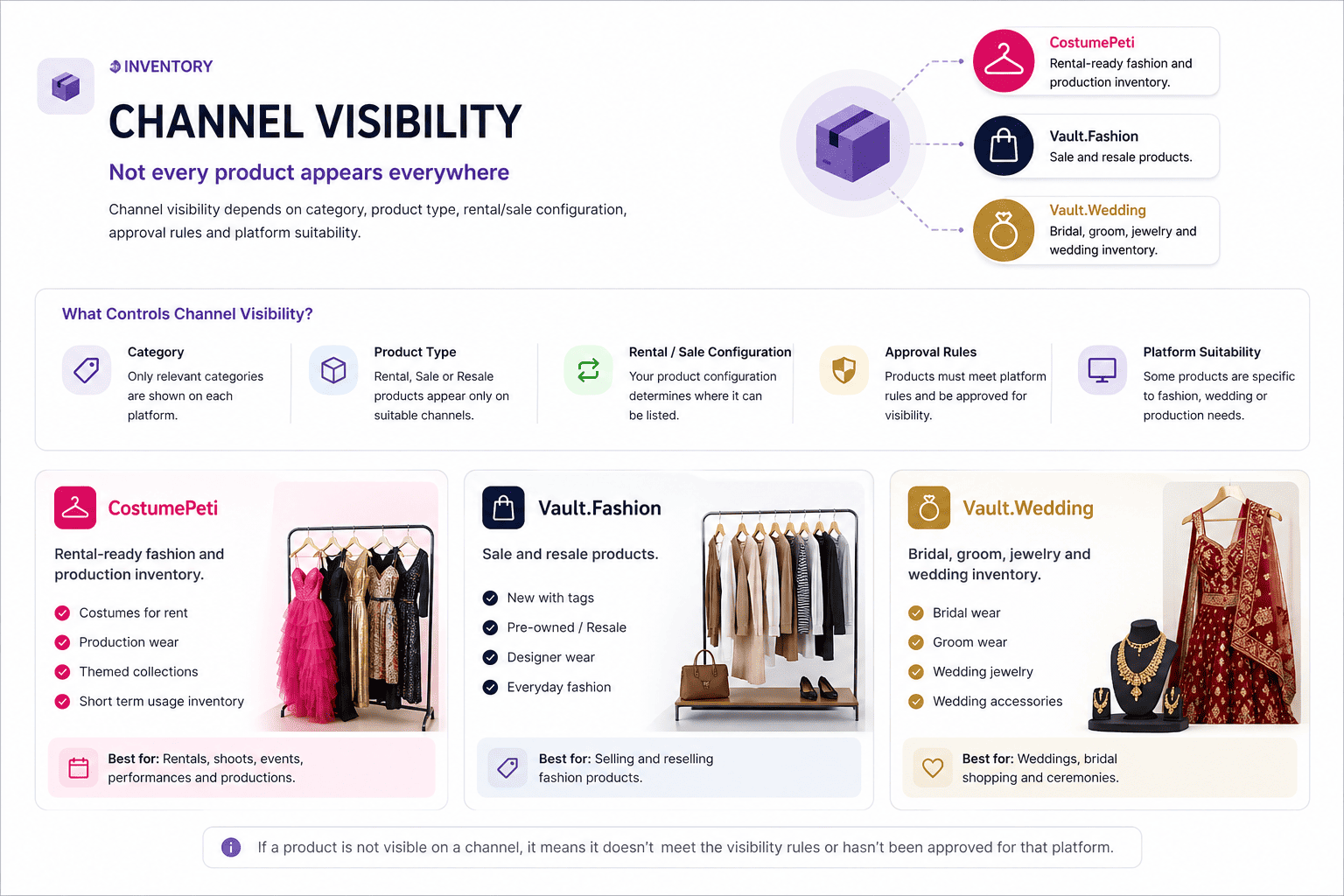
CHANNEL VISIBILITY

Not every product appears everywhere

Channel visibility depends on category, product type, rental/sale configuration, approval rules and platform suitability.

  • CostumePeti: rental-ready fashion and production inventory.
  • Vault.Fashion: sale and resale products.
  • Vault.Wedding: bridal, groom, jewelry and wedding inventory.
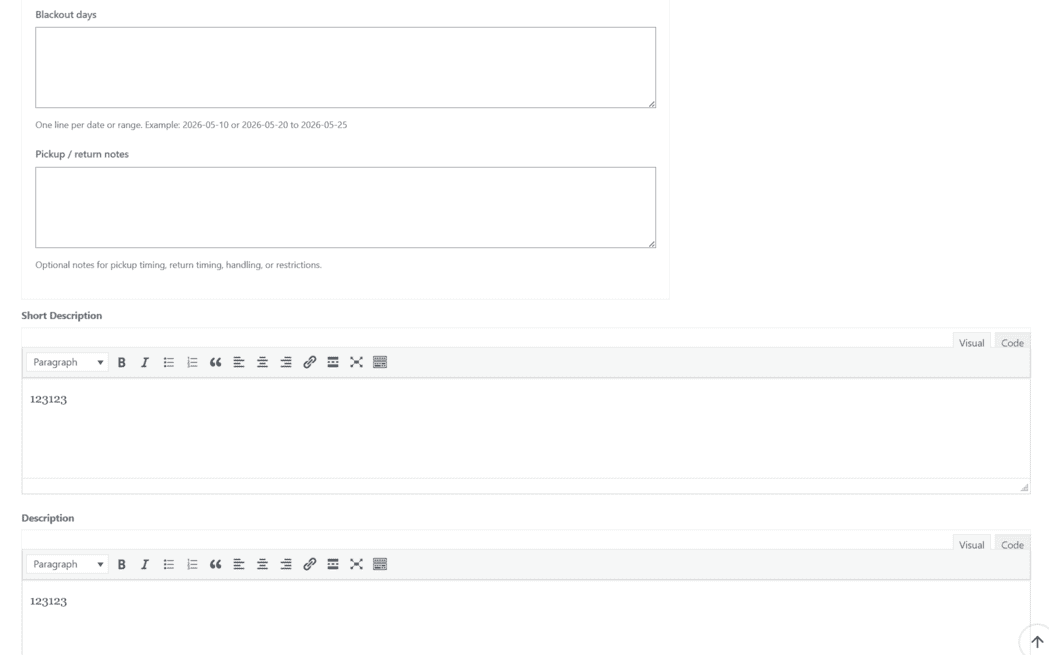
Channel visibility settings placeholder
IMPORTANT EDITING RULE

Edit from the correct source dashboard.

For best results, product updates should be made from Seller Central or the correct source product. Avoid editing synced child products directly unless support tells you to.

  • Edit title, price, stock and images from the seller/source product where applicable.
  • Avoid editing synced child products separately.
  • Major edits may require review or re-sync.
  • If sites show mismatched data, contact support before repeated edits.
Image sync dashboard placeholder
IMAGE SYNC

Product photos across platforms

Product images are important for customer trust. Upload clean images on the source listing and check that they appear correctly after publishing.

  • Use clear front, back and detail images.
  • Wait for sync to complete after upload.
  • If images are missing, send product URL, SKU and screenshots.
  • Do not repeatedly re-upload the same images unless support asks.
QR, BARCODE & WAREHOUSE

Future-ready inventory control

Vault’s operating model supports QR/barcode workflows and optional warehouse storage.

QR & Barcode Tracking

  • Helps identify items quickly.
  • Supports rental returns and condition checks.
  • Improves warehouse search and retrieval.
  • Helps with repair, audit and storage workflows.

Warehouse Storage

  • Organized storage and retrieval.
  • Faster fulfillment for rentals and sales.
  • Better condition tracking.
  • Reduced seller handling burden.
COMMON INVENTORY ISSUES

What to check before contacting support

Product Not Visible

It may be pending approval, out of stock, unpublished or not assigned to that channel.

Wrong Stock

Update stock from the source dashboard and contact support if mismatch continues.

Images Missing

Share product URL, SKU and screenshots with support. Avoid repeated re-uploads.

Price Mismatch

Check the source listing and avoid editing child listings separately.

Double Booking Risk

Keep rental dates, buffer days and product availability updated.

Unavailable Product Active

Pause products that are damaged, lost, under repair or unavailable.

SUPPORT CHECKLIST

What to send support for sync issues

Complete details help support resolve inventory problems faster.

  • Seller store name
  • Product title and SKU
  • Source product URL
  • Connected platform URL if available
  • Screenshot of the issue
  • What is wrong: stock, image, price, visibility or category
  • When the product was last edited
INVENTORY & SYNC FAQS

Common Questions

No. Seller Central is designed so eligible products can be uploaded once and published across connected platforms.

The product may not be approved for that channel, may be out of stock, may not match that platform category, or may still be waiting for sync.

Update stock from the seller/source dashboard. If the issue continues, contact support with product URL, SKU and screenshots.

Avoid editing synced child products directly unless support instructs you. Source-side edits help keep connected platforms consistent.

Contact support with the source product URL, connected site URL if available, SKU and screenshots showing the missing images.

Double booking risk usually happens when stock exists but rental availability is not updated. Block booked dates, add buffer days and pause unavailable products.

KEEP INVENTORY ACCURATE

Correct stock prevents lost orders and double bookings.

Update stock, availability and product status before accepting new rentals or sales.