PRODUCT UPLOAD GUIDE

Add or Edit a Product

Learn how to complete the Seller Central product edit form for rental, sale, stock, tax, shipping and multi-site publishing.

This guide follows the actual seller product page used on Seller Central, including CostumePeti rental fields, inventory, linked products, attributes and platform publishing options.

Seller product edit page screenshot placeholder
BEFORE YOU START

Prepare everything before opening the product form

The product edit page has many fields. Keeping details ready will help you submit a cleaner product and reduce approval delays.

1. Product Media

Keep front, back, detail, accessory and condition images ready.

Important: first image becomes the primary product image.

2. Product Details

Title, product type, category, brand, size, fabric, color, condition and description.

Goal: make the item searchable and filterable.

3. Rental & Sale Pricing

Regular price, sale price, rental price tiers, deposit, cleaning fee and minimum days.

Tip: protect premium items with deposits.

4. Operations

Stock, SKU, tax, shipping weight, linked products, attributes and multi-site options.

Important: avoid sync mistakes.

Product edit form overview screenshot placeholder
SCREEN OVERVIEW

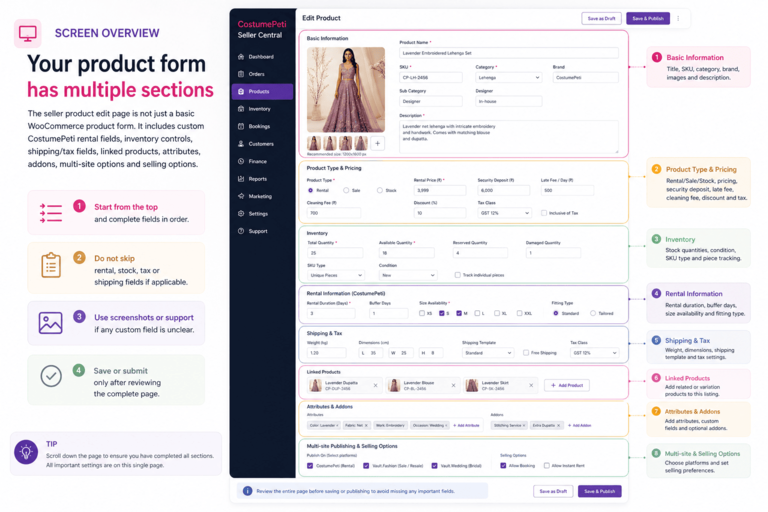
Your product form has multiple sections

The seller product edit page is not just a basic WooCommerce product form. It includes custom CostumePeti rental fields, inventory controls, shipping/tax fields, linked products, attributes, addons, multi-site options and selling options.

  • Start from the top and complete fields in order.
  • Do not skip rental, stock, tax or shipping fields if applicable.
  • Use screenshots or support if any custom field is unclear.
  • Save or submit only after reviewing the complete page.
STEP-BY-STEP FORM GUIDE

Complete the product edit page in this order

Use this as a checklist while adding or editing products.

STEP 01

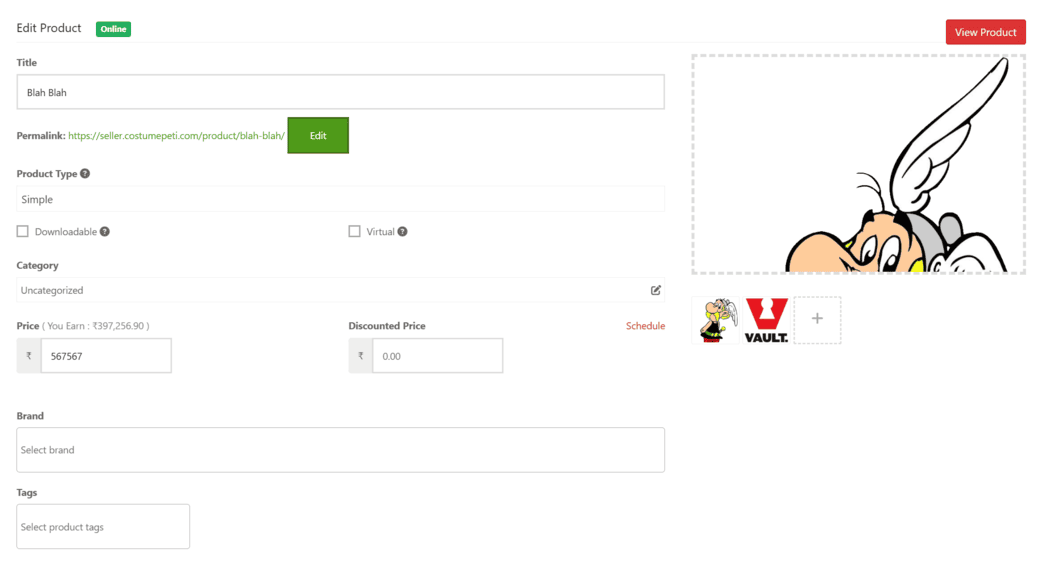
Basic Product Information

Start with the fields at the top of the form.

  • Title: use a clear, searchable product name.
  • Product type: choose the correct product type if available.
  • Product image: add the main featured image.
  • Gallery: add supporting product images.
  • Category: select the most accurate category.
  • Brand: add brand/designer name if relevant.

Avoid: vague titles like “Dress 1”, “Costume Set”, “New Product”.

Top product fields screenshot placeholder
Availability and booking fields screenshot placeholder
STEP 02

Availability & Booking Settings

Your form includes rental availability and booking controls. These fields decide whether the item can be booked and how it appears for rental.

  • Available for renting: enable this if the item can be rented.
  • Available now: use only when the item is ready to rent.
  • Where should this product be available? select the correct availability/channel option.
  • Rental buffer days: add buffer for cleaning, return checks or logistics.
  • Tax holding: use the correct tax/holding option as configured.

Read Rental Setup Guide →

STEP 03

Rental Pricing & Charges

The product form includes custom rental pricing fields. Fill these carefully because they affect seller earnings and customer booking cost.

  • Rental amount: main rental price.
  • Minimum rental days: minimum allowed rental duration.
  • Maximum rental days: maximum allowed rental duration.
  • Security deposit: protection for damage or loss.
  • Cleaning fee override: custom cleaning fee if required.
  • Rental price tiers: 1-day, 3-day, 5-day, 7-day, 9-day, 11-day etc. if available.

Important: premium, bridal, jewelry and designer items should not be underprotected.

Rental pricing fields screenshot placeholder
CUSTOM RENTAL FIELDS

What each rental field means

Use this table-style guide while completing the rental section.

Rental Amount

The base rental price shown to customers. Set this based on product value, demand and usage risk.

Security Deposit

Protects against damage, missing accessories, loss or misuse. Higher-value products should usually have stronger deposit protection.

Cleaning Fee

Covers steaming, dry cleaning, sanitizing, stain treatment or maintenance after rental use.

Notes and description editor placeholder
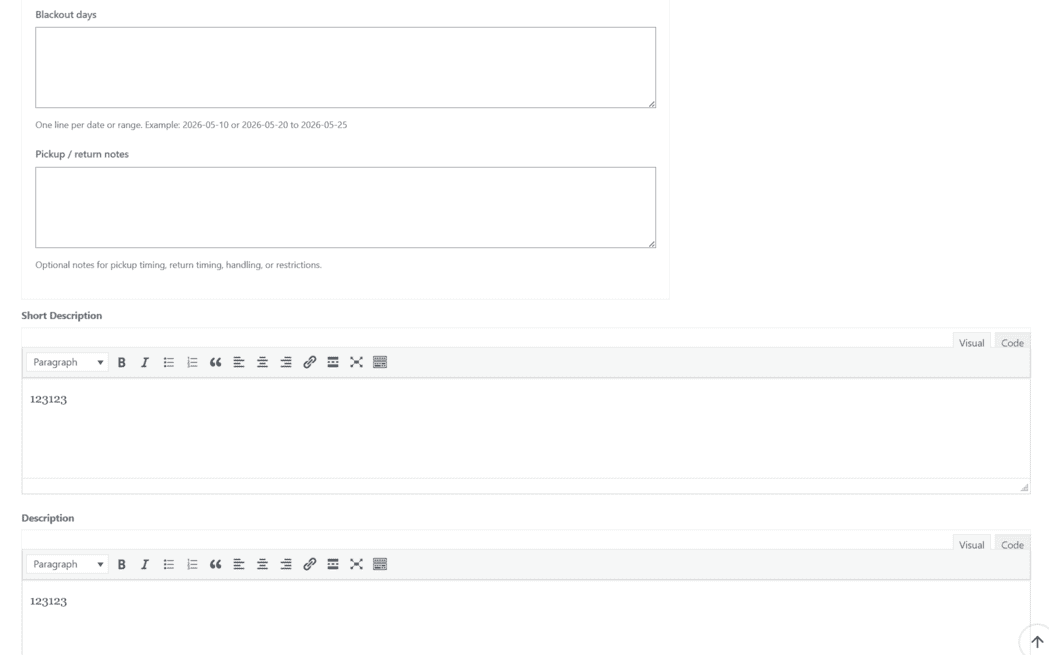
STEP 04

Rental Notes, Pickup Notes & Description

Your product page includes multiple text areas. Use them to reduce support questions.

  • Rental Notes: special rental rules, condition notes, handling instructions.
  • Pickup / Return Notes: pickup timing, return rules, packaging instructions.
  • Short Description: quick customer-facing summary.
  • Description: full product details, measurements, condition and included items.

Tip: mention included accessories clearly.

STEP 05

Inventory, SKU & Stock

The inventory section controls product tracking and availability.

  • SKU: add a unique product code if available.
  • Enable stock management: use when quantity must be tracked.
  • Stock quantity: enter available units.
  • Low stock threshold: set warning level if needed.
  • Stock status: in stock / out of stock.
  • Allow backorders: usually avoid for rental items unless approved.

Read Inventory Guide →

Inventory section screenshot placeholder
Shipping and tax section placeholder
STEP 06

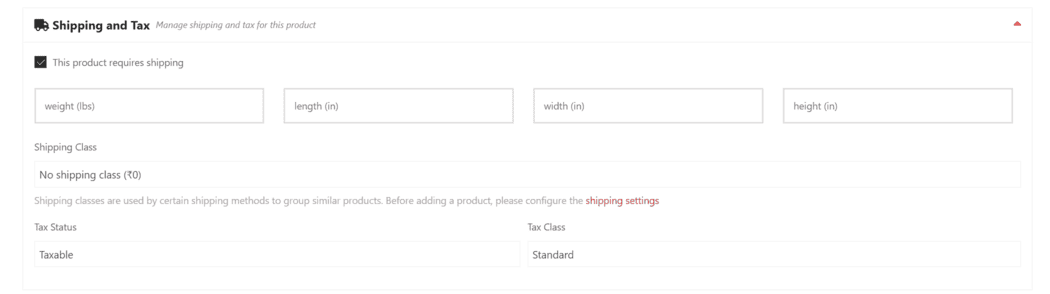
Shipping & Tax

Complete shipping and tax fields so the platform can calculate fulfillment and order handling correctly.

  • Weight: product/package weight if required.
  • Dimensions: length, width and height where applicable.
  • Shipping class: select the correct class if configured.
  • Tax status: taxable or non-taxable as applicable.
  • Tax class: choose correct tax class if available.

Important: rental and sale tax handling may differ depending on platform rules.

STEP 07

Linked Products

Use linked products only when relevant. These help suggest related items to customers.

  • Upsells: higher-value or recommended alternatives.
  • Cross-sells: matching accessories or related products.

Examples: sherwani + mojari, lehenga + jewelry, police costume + cap/accessory.

Linked products section placeholder
Attributes section placeholder
STEP 08

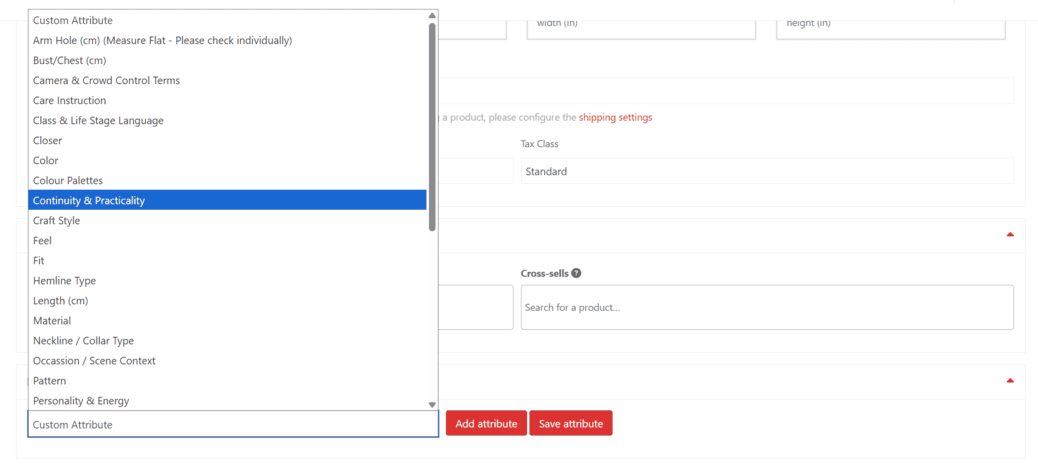
Attributes

Attributes help filtering, search and customer decision-making.

  • Add size, color, fabric, gender, occasion, brand and condition.
  • Use accurate values instead of generic text.
  • Attributes help customers filter products quickly.
  • Do not leave important attributes blank.

Examples: Red, Silk, Women, Bridal, Medium, Designer, Gently Used.

STEP 09

Add-ons & Product Options

Your form includes addon/product-option sections. Use these only when needed.

  • Add optional extras if customers can choose add-ons.
  • Use for accessories, custom fitting, handling or service options if configured.
  • Keep addon names clear and simple.
  • Do not create confusing or duplicate add-ons.
Product addons section placeholder
MULTI-SITE & PLATFORM OPTIONS

Choose where the product should appear

Your seller product page may include options for multi-site publishing or platform visibility. These settings control whether the product can appear on CostumePeti, Vault.Fashion, Vault.Wedding or future Vault channels.

  • CostumePeti: rental-focused products.
  • Vault.Fashion: sale / resale products.
  • Vault.Wedding: bridal, groom, jewelry and occasion inventory.
  • Future channels: may include luxury, props, furniture or other verticals.

Read Inventory & Sync Guide →

WooMultistore or platform options placeholder
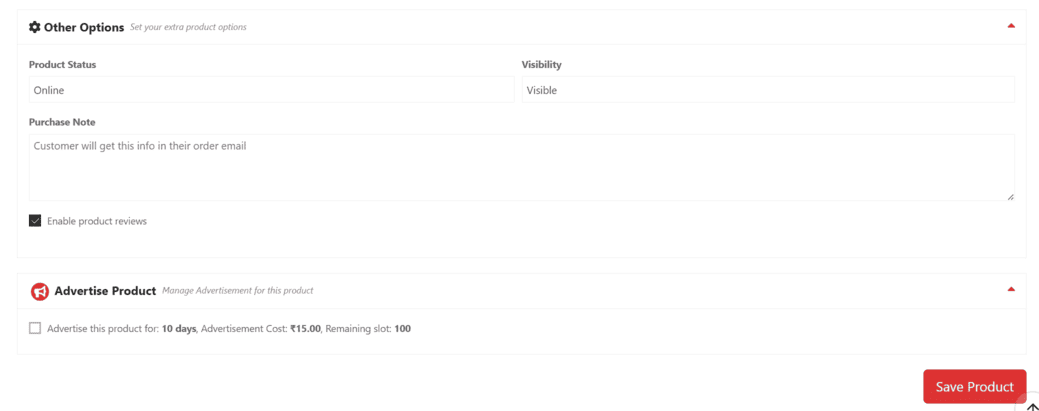
Submit or update product button placeholder
STEP 10

Review, Save & Submit

Before saving or submitting, check the entire form from top to bottom.

  • Title, images and category are correct.
  • Rental and sale pricing are complete.
  • Deposit and cleaning fee are correct.
  • Stock and availability are accurate.
  • Shipping and tax fields are complete.
  • Attributes and linked products are correct.
  • Multi-site/platform options are selected correctly.
FIELD MAP

Quick map of the product edit page

Use this section to understand the major areas in the form.

Product Identity

  • Title
  • Images
  • Gallery
  • Brand
  • Category
  • Short description

Rental Controls

  • Available for renting
  • Rental amount
  • Rental duration
  • Security deposit
  • Cleaning fee
  • Pickup / return notes

Operations

  • Inventory
  • Shipping
  • Tax
  • Linked products
  • Attributes
  • Multi-site options
APPROVAL CHECKLIST

Best practices for faster approval

  • Use a searchable title with product type, color and use case.
  • Upload clear front, back, detail and accessory images.
  • Select accurate category, tags and attributes.
  • Add rental price, deposit, cleaning fee and duration where applicable.
  • Add SKU, stock status and stock quantity.
  • Complete shipping and tax fields if required.
  • Write clear rental notes and pickup/return instructions.
  • Mention damages, wear, missing parts or repairs clearly.
  • Choose correct multi-site/platform options.
  • Do not submit incomplete or duplicate listings.
AVOID THESE MISTAKES

Common reasons products get delayed

Incomplete Rental Fields

Missing deposit, rental price, duration or availability can delay approval.

Wrong Stock

Incorrect stock quantity can cause overselling or double booking.

Missing Tax / Shipping

Incomplete operational fields can create order handling problems.

Wrong Platform Option

Incorrect site/channel selection may stop the product from appearing correctly.

SUPPORT CHECKLIST

What to send support for product issues

  • Seller store name
  • Product title
  • Product SKU
  • Product edit URL or product URL
  • Screenshot of the affected field
  • Whether issue is with images, rental fields, pricing, stock, tax, shipping, sync or publishing
  • Which platform is affected: Seller Central, CostumePeti, Vault.Fashion or Vault.Wedding
PRODUCT FORM FAQS

Common Questions

Seller Central supports rentals, sales, inventory, tax, shipping, multi-site publishing and custom rental workflows. Complete only the fields relevant to your product, but do not skip required operational fields.

Rental products should include rental price, minimum/maximum rental days, security deposit, cleaning fee, stock, availability, condition notes and pickup/return notes.

If the product is only for rental, sale price may not be required depending on platform configuration. If the product is both rental and sale, fill both pricing sections carefully.

Avoid editing synced child products directly unless support tells you to. Source-side edits help keep products consistent across platforms.

Contact support with seller store name, product title, SKU, source product URL, affected platform and screenshots.

Review title, images, category, rental fields, sale price, stock, tax, shipping, attributes and platform options before saving or submitting.

READY TO LIST?

Complete every required section before submitting.

A complete product form improves approval speed, sync accuracy and customer confidence.